Luma Image to Image Partner Nodes ComfyUI Official Example
This guide covers how to use the Luma Image to Image Partner node in ComfyUI
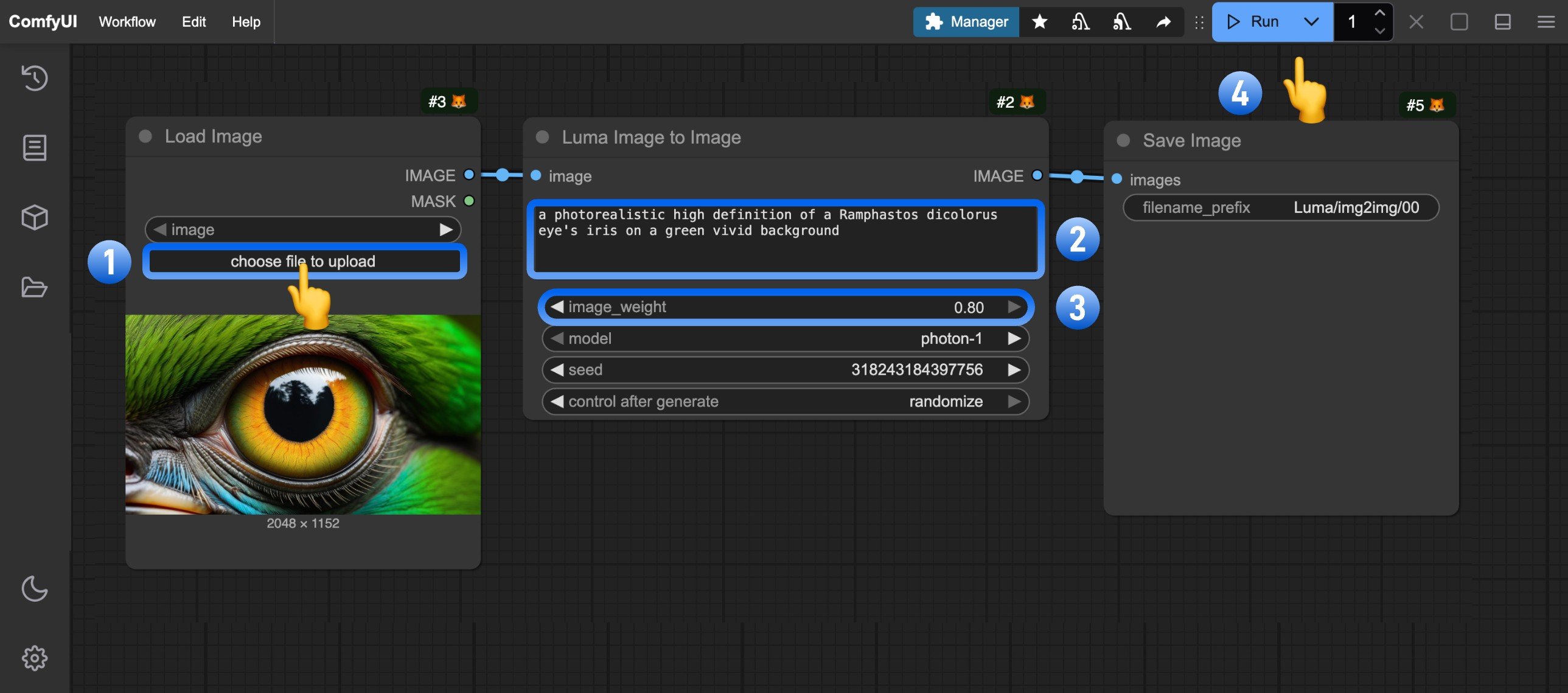
The Luma Image to Image node allows you to modify existing images based on text prompts using Luma AI technology, while preserving certain features and structures from the original image.
Prompt-driven image editing: Modifies existing images based on text prompts while preserving certain features and structures from the original
Changing objects and shapes: The node works well for changing objects and shapes, though it may not be ideal for color changes
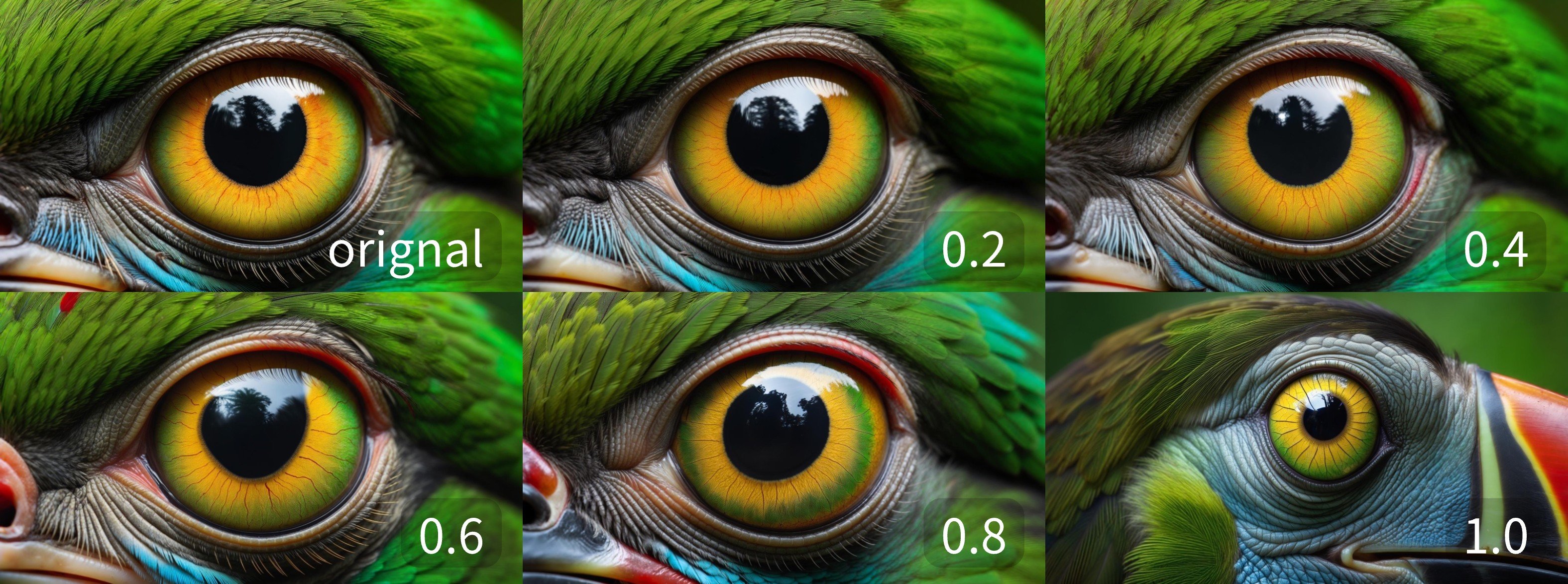
Adjustable input influence: The image_weight parameter controls how strongly the input image shapes the result, with lower values staying closer to the original
Results at different image_weight values, showing how strongly the input image influences the generated output:
To use the Partner Nodes, you need to ensure that you are logged in properly and using a permitted network environment. Please refer to the Partner Nodes Overview section of the documentation to understand the specific requirements for using the Partner Nodes.
Workflows in this guide can be found in the Workflow Templates.
If you can’t find them in the template, your ComfyUI may be outdated.If nodes are missing when loading a workflow, possible reasons:
You are not using the latest ComfyUI version (Nightly version)
So, if you find any core node missing in this document, it might be because the new core nodes have not yet been released in the latest stable version. Please wait for the next stable release.
This feature works well for changing objects and shapes. However, it may not be ideal for color changes. We recommend using lower weight values, around 0.0 to 0.1.
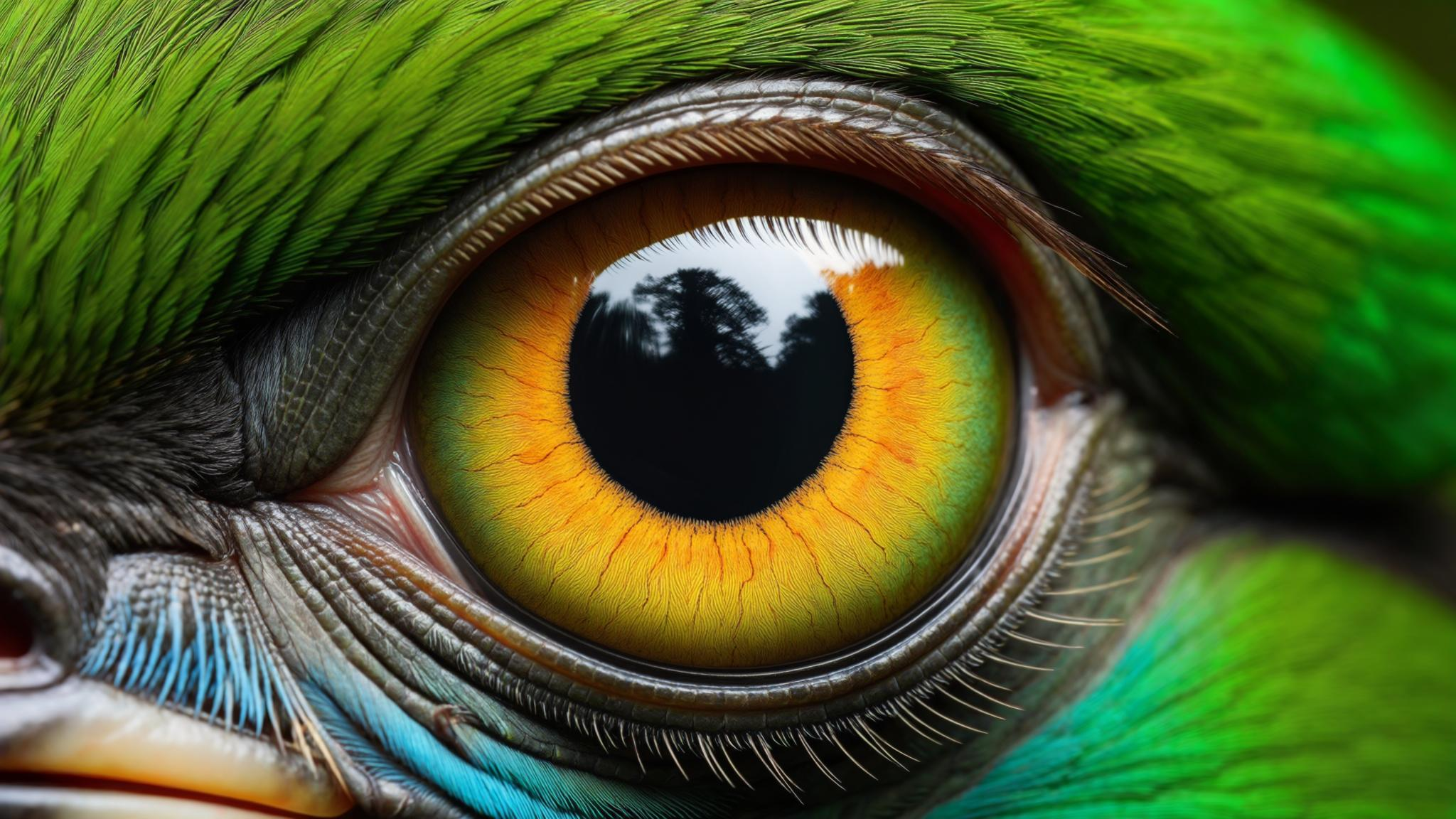
Download and drag the following image into ComfyUI to load the workflow (workflow information is included in the image metadata):Download this image to use as input:


 Download this image to use as input: